Junjo (順序) - order, sequence, procedure
Junjo AI Studio is an open source, self-hostable AI Agent and Workflow debugging and eval platform for any OpenTelemetry instrumented AI application.
The Junjo Python Library is a framework for structuring AI logic and enhancing Otel span data to improve observability and developer velocity. Junjo remains decoupled from your LLM implemetations and business logic, proving a layer of orgnization, execution, and telemetry to your existing application.
Gain complete visibility to the state of the application, and every change LLMs make to the application state. Complex, mission critical AI workflows are made transparent and understandable with Junjo.
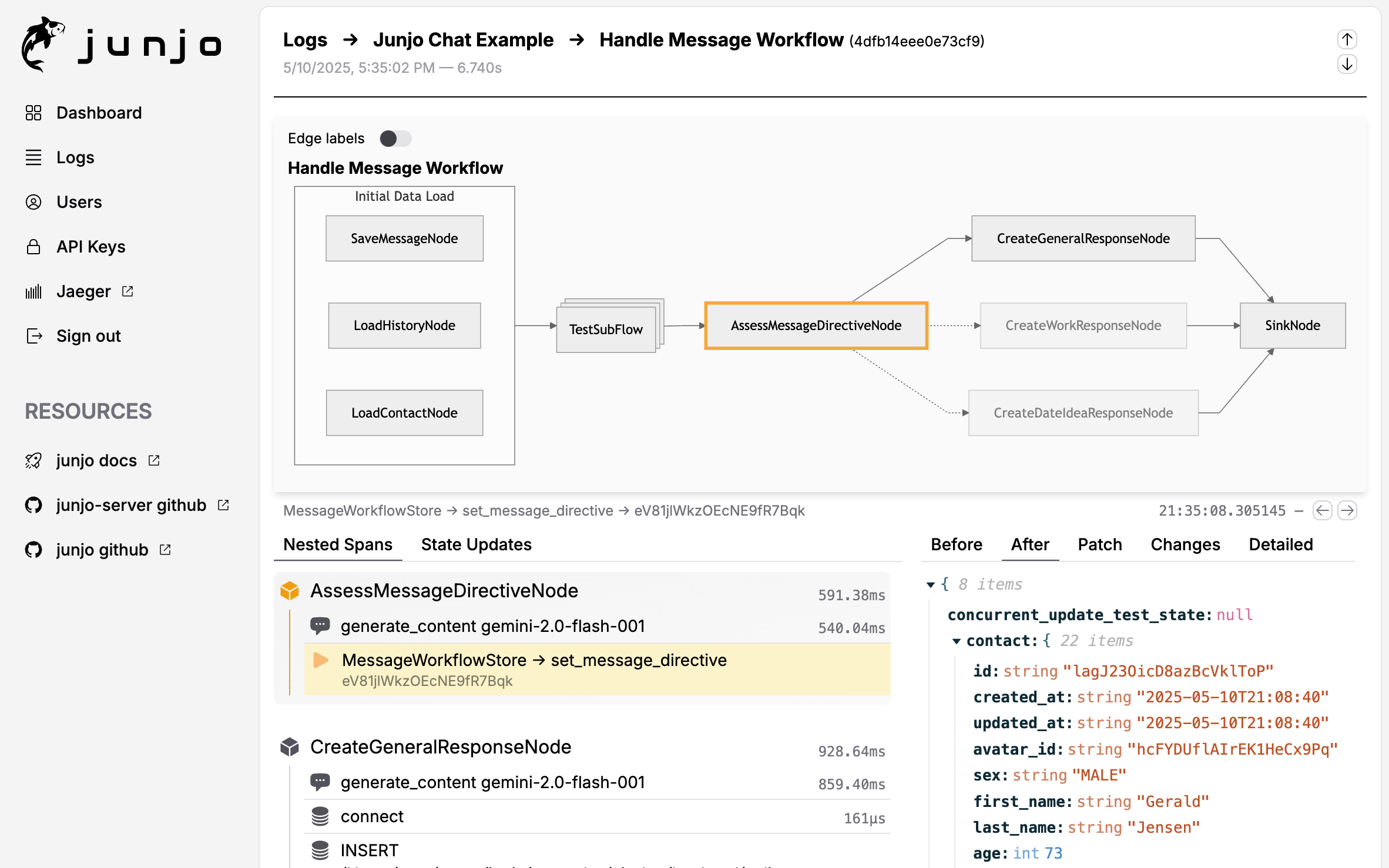

Junjo AI Studio Workflow Debugging Screenshot
- 🔍 Real-time LLM Decision Visibility - See every decision your LLM makes and the data it uses
- 🔀 Transparent Concurrency - Debug state changes from concurrently executed AI workflow steps
- 📊 OpenTelemetry Native - Standards-based telemetry ingestion via gRPC
- 🎯 Workflow Debugging Interface - Visual step-by-step debugging of AI graph workflows
- 🪶 Prompt Playground - Expirement with different models and prompt tweaks while you debug
- 🔒 Production-Ready Security - Authentication, user accounts, and encrypted sessions
- 🚀 Low Resource, High-Performance Ingestion - Designed for high-throughput in low resource environments
- 💾 Shared vCPU, 1GB Ram - Production grade telemetry on a $5 / month virutal machine
- Quick Start
- Features
- Architecture
- Prerequisites
- Configuration
- Production Deployment
- Advanced Topics
- Testing
- Troubleshooting
- Resources
Get Junjo AI Studio running on your local machine in 5 minutes using the Junjo AI Studio Minimal Build repository. This repository provides a minimal, standalone setup using pre-built Docker images from Docker Hub, perfect for both quick testing and production deployments of Junjo AI Studio.
-
Clone the minimal build repository
git clone https://github.com/mdrideout/junjo-ai-studio-minimal-build.git cd junjo-ai-studio-minimal-build -
Choose setup mode
Option A: Guided setup script (recommended)
./scripts/junjo setup
The setup wizard creates/updates
.env, applies a VM memory profile, and auto-generates required secrets.Option B: Manual setup
cp .env.example .env
Then generate and set secrets:
# Generate session secret (copy this output)
openssl rand -base64 32

# Generate secure cookie key (copy this output)
openssl rand -base64 32
Open
.envin a text editor and replace the placeholder values:- Replace
your_base64_secret_hereinJUNJO_SESSION_SECRETwith the first generated value - Replace
your_base64_key_hereinJUNJO_SECURE_COOKIE_KEYwith the second generated value
For production deployments, also configure:
JUNJO_ENV=production
JUNJO_PROD_FRONTEND_URL=https://app.example.com
JUNJO_PROD_BACKEND_URL=https://api.example.com
JUNJO_PROD_INGESTION_URL=https://ingestion.example.com
See
.env.examplefor complete production configuration options.See the Minimal Build template repository for in-depth configuration instructions.
- Replace
-
Create the Docker network (first time only)
docker network create junjo-network
-
Start all services
docker compose up -d
-
Access Junjo AI Studio
- Frontend: http://localhost:5153
- Backend API: http://localhost:1323
- OTLP Ingestion Endpoint: grpc://localhost:50051
-
Create your first user
- Navigate to http://localhost:5153
- Follow the setup wizard to create your admin account
-
Create an API key (for sending telemetry from your Junjo app)
- Sign in to the web UI
- Navigate to Settings → API Keys
- Click Create API Key
- Copy the 64-character key (shown only once)
- Use this key in your Junjo Python Library application
# View logs from all services
docker compose logs -f

# View logs from specific service
docker compose logs -f junjo-ai-studio-backend
docker compose logs -f junjo-ai-studio-ingestion
docker compose logs -f junjo-ai-studio-frontend

# Stop services (keeps data)
docker compose down

# Restart a specific service
docker compose restart junjo-ai-studio-backend

# View running containers and their status
docker compose ps

# Stop and remove all data (fresh start)
docker compose down -vConfigure your Junjo Python Library application to send telemetry to grpc://localhost:50051 using the API key you created.
For source code development: If you want to modify Junjo AI Studio's source code (not just use it), see the development guides in backend/README.md, frontend/README.md, and ingestion/README.md in the main junjo-ai-studio repository.
Observability & Debugging:
- View complete execution traces of AI workflows
- Inspect LLM prompts, responses, and reasoning
- Track state changes across workflow nodes
- Monitor performance and latency
LLM Playground:
- Test prompts with multiple providers (OpenAI, Anthropic, Google Gemini)
- Compare responses across models
- Experiment with temperature and reasoning modes
OpenTelemetry Integration:
- Standards-compliant OTLP/gRPC ingestion endpoint
- Automatic trace collection from Junjo Python Library
- Custom span attributes for AI-specific metadata
Multi-Service Architecture:
- Decoupled ingestion for high throughput
- Web UI for visualization
- REST API for programmatic access
The Junjo AI Studio is composed of three primary services:
- Tech Stack: FastAPI (Python), SQLite, DataFusion
- Responsibilities:
- HTTP REST API
- User authentication & session management
- LLM playground
- Span querying & analytics
- Tech Stack: Rust, gRPC (tonic), Arrow IPC, Parquet
- Responsibilities:
- OpenTelemetry OTLP/gRPC endpoint (port 50051)
- High-throughput span ingestion with backpressure
- Write-Ahead Log using Arrow IPC segments
- Flush WAL to date-partitioned Parquet files (cold storage)
- Prepare hot snapshots for real-time queries
- Tech Stack: React, TypeScript
- Responsibilities:
- Web UI for workflow visualization
- LLM playground interface
- User management
Data Flow (Two-Tier Architecture):
Junjo Python App → Ingestion Service (gRPC) → Arrow IPC WAL
                                                    ↓
                                         ┌─────────┴─────────┐
                                         ↓                   ↓
                                    FlushWAL RPC    PrepareHotSnapshot RPC
                                         ↓                   ↓
                                  Parquet files         Hot snapshot
                                  (COLD tier)          (HOT tier)
                                         ↓                   ↓
                                         └─────────┬─────────┘
                                                   ↓
                                    Backend Service (DataFusion)
                                         ↓
                                  Merged query results
                                         ↓
                                     Frontend UI
How it works:
- Ingestion receives OTLP spans and writes them to Arrow IPC WAL segments
- FlushWAL (periodic/manual) converts WAL segments to date-partitioned Parquet files (COLD tier)
- PrepareHotSnapshot creates an on-demand Parquet file from unflushed WAL data (HOT tier) and returns a bounded list of recently flushed cold Parquet files (
recent_cold_paths) to bridge indexing lag - Backend uses DataFusion to query COLD (SQLite-indexed +
recent_cold_paths) and HOT Parquet files, merging results with deduplication by(trace_id, span_id)(COLD wins)
- Docker and Docker Compose (for both development and production)
- Rust toolchain (for ingestion service development)
- Python 3.13+ with uv (for backend development)
- Node.js 18+ (for frontend development)
- A domain or subdomain for hosting (see Deployment Requirements)
- SSL certificates (automatic with Caddy, Let's Encrypt, etc.)
Junjo AI Studio uses a single .env file at the root of the project. All services read from this file.
For a guided setup wizard that writes critical .env values (including memory tuning profiles), run:
./scripts/junjo setup# === Build & Environment ===========================================
# Build Target: development | production
JUNJO_BUILD_TARGET="development"
# Running Environment: development | production
# (affects cookie security, logging, etc.)
JUNJO_ENV="development"
# === Security (REQUIRED for production) ============================
# Generate both with: openssl rand -base64 32
JUNJO_SESSION_SECRET=your_base64_secret_here
JUNJO_SECURE_COOKIE_KEY=your_base64_key_here
# === CORS ==========================================================
# IMPORTANT: Cannot use "*" with session cookies (credentials=True)
# Default: http://localhost:5151,http://localhost:5153 (dev/prod build ports)
# Production: Auto-derived from JUNJO_PROD_FRONTEND_URL if not set
# Explicitly set for multiple frontends:
# JUNJO_ALLOW_ORIGINS=https://app.example.com,https://admin.example.com
# === Ports =========================================================
PORT=1323 # Backend HTTP port
INGESTION_PORT=50051 # OTLP ingestion gRPC port (public)
GRPC_PORT=50053 # Backend internal gRPC port
# === Database Storage ==============================================
# Where database files are stored on your host machine/VM
JUNJO_HOST_DB_DATA_PATH=./.dbdata
# === Logging =======================================================
LOG_LEVEL=info # debug | info | warn | error
LOG_FORMAT=text # json | text
# === LLM API Keys (optional) =======================================
OPENAI_API_KEY=sk-...
ANTHROPIC_API_KEY=sk-ant-...
GEMINI_API_KEY=...See .env.example for complete configuration with detailed comments.
Junjo AI Studio stores all database files in a single location that you configure. Simply set where you want the data stored on your host machine, and Docker handles the rest.
For local development, use a relative path:
# .env file
JUNJO_HOST_DB_DATA_PATH=./.dbdata
JUNJO_BUILD_TARGET=development
This stores databases in ./.dbdata directory next to your docker-compose.yml. Docker creates this directory automatically.
Benefits:
- Easy to reset by deleting the directory
- No special setup required
- Works out of the box
For production deployments with persistent storage (DigitalOcean Volumes, AWS EBS, Google Persistent Disk):
1. Mount your block storage:
# DigitalOcean Droplet example
sudo mount /dev/disk/by-id/scsi-0DO_Volume_junjo /mnt/junjo-data

# AWS EC2 example
sudo mount /dev/xvdf /mnt/junjo-data

# Google Cloud example
sudo mount /dev/disk/by-id/google-junjo-data /mnt/junjo-data
2. Update your .env file:
JUNJO_HOST_DB_DATA_PATH=/mnt/junjo-data
JUNJO_BUILD_TARGET=production
3. Start services:
docker compose up -dBenefits:
- Data persists across container restarts
- Data survives even if you delete and recreate containers
- Easy to backup by snapshotting the volume
- Can detach and reattach to different instances
- The
JUNJO_HOST_DB_DATA_PATHvariable is the ONLY path you need to configure - Container-internal paths are set automatically in
docker-compose.yml - If
JUNJO_HOST_DB_DATA_PATHis not set, it defaults to./.dbdata - All three services (backend, ingestion, frontend) share the same storage location
Junjo AI Studio uses embedded databases and file-based storage:
| Storage | Purpose | Type |
|---|---|---|
| SQLite | User data, API keys, sessions | Single file |
| Parquet | Span analytics (COLD tier) | Date-partitioned files |
| Arrow IPC WAL | Ingestion buffer (HOT tier) | Directory of IPC segments |
| Hot Snapshot | Real-time query cache | Single Parquet file |
All are stored under JUNJO_HOST_DB_DATA_PATH on your host machine. The backend uses DataFusion to query Parquet files directly.
After starting Junjo AI Studio:
- Sign in to the web UI (http://localhost:5153)
- Navigate to Settings → API Keys
- Click Create API Key
- Copy the 64-character key (shown only once)
- Use this key in your Junjo Python Library application
Supported configurations:
- ✅
api.example.com+app.example.com(subdomain + subdomain) - ✅
api.example.com+example.com(subdomain + apex) - ✅
example.com+api.example.com(apex + subdomain) - ❌
app.example.com+service.run.app(different domains - will NOT work)
Why? Junjo AI Studio uses session cookies with SameSite=Strict for security (CSRF protection). Cross-domain deployments will cause authentication to fail.
📖 See docs/DEPLOYMENT.md for complete deployment guide, including:
- Platform-specific examples (Google Cloud Run, AWS, Docker Compose)
- Environment configuration for production
- Security features and best practices
- Troubleshooting guide
https://github.com/mdrideout/junjo-ai-studio-minimal-build
A minimal, standalone repository with just the core Junjo AI Studio components using pre-built Docker images.
Best for:
- Quick testing of Junjo AI Studio
- Simple production deployments
- Integration into existing infrastructure
https://github.com/mdrideout/junjo-ai-studio-deployment-example
A complete, production-ready example that includes a Junjo Python Library application alongside the server infrastructure.
Best for:
- End-to-end deployment examples
- Learning how to configure your Junjo app with the server
- VM deployment guide (Digital Ocean Droplet, AWS EC2, etc.)
- Caddy reverse proxy setup for SSL
The README provides step-by-step deployment instructions.
Junjo AI Studio is built and deployed to Docker Hub with each GitHub release:
- Backend: mdrideout/junjo-ai-studio-backend
- Ingestion Service: mdrideout/junjo-ai-studio-ingestion
- Frontend: mdrideout/junjo-ai-studio-frontend
Example docker-compose.yml:
services:
  junjo-ai-studio-backend:
    image: mdrideout/junjo-ai-studio-backend:latest
    container_name: junjo-ai-studio-backend
    restart: unless-stopped
    volumes:
      - ${JUNJO_HOST_DB_DATA_PATH:-./.dbdata}:/app/.dbdata
    ports:
      - "1323:1323"   # HTTP API (public)
      # Port 50053 (internal gRPC for API key validation) is NOT exposed - only accessible via Docker network
    networks:
      - junjo-network
    env_file:
      - .env
    environment:
      - INGESTION_HOST=junjo-ai-studio-ingestion
      - INGESTION_PORT=50052
      - RUN_MIGRATIONS=true
      - JUNJO_SQLITE_PATH=/app/.dbdata/sqlite/junjo.db
      - JUNJO_METADATA_DB_PATH=/app/.dbdata/sqlite/metadata.db
      - JUNJO_PARQUET_STORAGE_PATH=/app/.dbdata/spans/parquet

  junjo-ai-studio-ingestion:
    image: mdrideout/junjo-ai-studio-ingestion:latest
    container_name: junjo-ai-studio-ingestion
    restart: unless-stopped
    volumes:
      - ${JUNJO_HOST_DB_DATA_PATH:-./.dbdata}:/app/.dbdata
    ports:
      - "50051:50051"  # Public OTLP endpoint (authenticated via API key)
      # Port 50052 (internal gRPC for PrepareHotSnapshot/FlushWAL) is NOT exposed - only accessible via Docker network
    networks:
      - junjo-network
    env_file:
      - .env
    environment:
      - BACKEND_GRPC_HOST=junjo-ai-studio-backend
      - BACKEND_GRPC_PORT=50053
      - WAL_DIR=/app/.dbdata/spans/wal
      - SNAPSHOT_PATH=/app/.dbdata/spans/hot_snapshot.parquet
      - PARQUET_OUTPUT_DIR=/app/.dbdata/spans/parquet
    depends_on:
      junjo-ai-studio-backend:
        condition: service_started
    healthcheck:
      test: ["CMD", "/bin/grpc_health_probe", "-addr=localhost:50052"]
      interval: 5s
      timeout: 3s
      retries: 5
      start_period: 30s

  junjo-ai-studio-frontend:
    image: mdrideout/junjo-ai-studio-frontend:latest
    container_name: junjo-ai-studio-frontend
    restart: unless-stopped
    ports:
      - "5153:80"
    env_file:
      - .env
    networks:
      - junjo-network
    depends_on:
      junjo-ai-studio-backend:
        condition: service_started

networks:
  junjo-network:
    name: junjo_network
    driver: bridge
For a more complete example with reverse proxy, see the Junjo AI Studio Deployment Example Repository.
Junjo AI Studio is designed to be low resource:
- Minimum: Shared vCPU + 1GB RAM
- Databases: SQLite (embedded, low overhead)
- Recommended: 1 vCPU + 2GB RAM for production workloads
The ingestion service stores spans in Parquet files. You can inspect them using Python.
import pyarrow.parquet as pq

# Read cold tier
table = pq.read_table('.dbdata/spans/parquet/')
print(f"Cold tier spans: {table.num_rows}")

# Read hot snapshot
hot = pq.read_table('.dbdata/spans/hot_snapshot.parquet')
print(f"Hot tier spans: {hot.num_rows}")# SQLite (user data, API keys, sessions)
sqlite3 ./.dbdata/sqlite/junjo.db- Ingestion throughput: Adjust ingestion tunables in
.env(see.env.example, e.g.BATCH_SIZE,FLUSH_MAX_MB,FLUSH_MAX_AGE_SECS,BACKPRESSURE_MAX_MB) - Database performance: SQLite uses WAL mode for better concurrency
- Container resources: Increase memory limits if processing high span volumes
Junjo AI Studio has comprehensive test coverage across all services. Tests are organized to support both local development and CI/CD pipelines.
# Run all tests (backend, frontend, contract validation, proto validation)
./run-all-tests.sh
This script runs: 0. Proto version checking - Warns if protoc version doesn't match required v30.2
- Python linting - Runs ruff check on backend code (matches pre-commit validation)
- Backend tests - Unit, integration, and gRPC tests (Python/pytest)
- Ingestion tests - Rust unit/integration tests (Cargo)
- Frontend tests - Unit, integration, and component tests (TypeScript/Vitest)
- Contract tests - Validates frontend ↔ backend API schema compatibility
- Proto validation - Regenerates protos and validates staleness
Run everything:
./run-all-tests.sh- Complete test suite for all services
Backend-specific:
./backend/scripts/run-backend-tests.sh- All backend tests (unit, integration, gRPC)./backend/scripts/validate_rest_api_contracts.sh- Contract tests (schema validation)
Frontend-specific:
cd frontend && npm run test:run- All frontend tests (exits after completion)cd frontend && npm test- All frontend tests (watch mode)cd frontend && npm run test:contracts- Contract tests only
Individual services:
- Backend: See backend/README.md for detailed test categories
- Frontend: See frontend/README.md for component testing
- Ingestion: See ingestion/README.md for Rust tests
Junjo AI Studio uses a centralized root VERSION file for release/app metadata synchronization.
# Sync all managed version fields from VERSION
./scripts/sync-version.sh

# Set a new version and sync everything
./scripts/sync-version.sh 0.80.0

# Verify all managed files are in sync with VERSION
./scripts/check-version-sync.sh
Managed files include backend (pyproject, FastAPI metadata, OpenAPI), ingestion (Cargo.toml/Cargo.lock), and frontend (package.json/package-lock.json).
Release guardrail: Docker publish workflow validates that the GitHub release tag exactly matches VERSION.
Understanding what each validation tool does helps avoid surprises at commit time.
| Validation | run-all-tests.sh | pre-commit hook | CI (GitHub Actions) |
|---|---|---|---|
| Proto version check | ✅ Warns | ✅ Warns | ✅ Enforces |
| Python linting (ruff) | ✅ Fails | ✅ Auto-fixes + fails | ✅ Enforces |
| Backend tests | ✅ Runs all | ❌ | ✅ Enforces |
| Ingestion tests | ✅ Runs all | ❌ | ✅ Enforces |
| Frontend tests | ✅ Runs all | ❌ | ✅ Enforces |
| Contract tests | ✅ Validates | ❌ | ✅ Enforces |
| Proto regeneration | ✅ Regenerates | ✅ Regenerates + stages | ✅ Checks staleness |
| Proto staleness check | ✅ Fails on diff | ❌ (auto-fixes) | ✅ Enforces |
During development (before committing):
# Option 1: Run everything at once (recommended)
./run-all-tests.sh

# Option 2: Run individual validations
cd backend && uv run ruff check app/          # Linting
./backend/scripts/run-backend-tests.sh        # Backend tests
cd ingestion && cargo test                    # Ingestion tests
cd frontend && npm test                       # Frontend tests
./backend/scripts/validate_rest_api_contracts.sh  # Contracts
At commit time:
git commit
# Pre-commit hook runs automatically:
# - Checks proto versions (warns if wrong)
# - Regenerates proto files (stages changes)
# - Runs orphan detection (blocks if missing .proto files)
# - Runs ruff format (auto-fixes Python style)
# - Runs ruff check (blocks if linting errors)
Philosophy:
- run-all-tests.sh: Comprehensive validation during development - catches issues early
- pre-commit hook: Safety net + auto-fixes - ensures commit quality
- CI: Final enforcement - prevents merging broken code
Why run-all-tests.sh matches pre-commit:
Previously, run-all-tests.sh could pass but pre-commit would fail (orphaned schemas, linting errors). This wasted developer time debugging at commit stage. Now both tools perform the same core validations, with pre-commit adding auto-fixes.
Result: No surprises at commit time. If run-all-tests.sh passes, pre-commit will too (except for auto-fixable style issues).
Junjo AI Studio uses contract testing to prevent frontend/backend API drift. Backend Pydantic schemas are the single source of truth, validated against frontend TypeScript/Zod schemas using OpenAPI-generated mocks.
How it works:
- Backend exports OpenAPI schema from Pydantic models
- Frontend tests generate mocks from OpenAPI spec
- Zod schemas validate they can parse the mocks
- Tests fail if schemas drift
Run contract tests:
./backend/scripts/validate_rest_api_contracts.shSee backend/scripts/README_SCHEMA_VALIDATION.md for detailed documentation.
Tests run automatically on all PRs via GitHub Actions:
.github/workflows/backend-tests.yml- Backend test suite.github/workflows/rest-api-contract-validation.yml- REST API contract tests.github/workflows/proto-staleness-check.yml- Proto file validation.github/workflows/version-sync-check.yml- Version drift validation againstVERSION
Symptom: Can't sign in, or immediately signed out after login.
Causes & Solutions:
-
Multiple Junjo instances on localhost
- Old session cookies from another instance may interfere
- Fix: Clear browser cookies for
localhostand restart services
-
Cross-domain deployment (most common in production)
- Frontend and backend on different top-level domains
- Fix: Ensure both services share the same registrable domain (see Deployment Requirements)
-
Missing or invalid secrets
JUNJO_SESSION_SECRETorJUNJO_SECURE_COOKIE_KEYnot set correctly- Fix: Generate new secrets with
openssl rand -base64 32
-
CORS misconfiguration
- Frontend URL not in
JUNJO_ALLOW_ORIGINS - Fix: Add your frontend URL to the CORS origins list
- Frontend URL not in
See docs/DEPLOYMENT.md for detailed troubleshooting guide.
Symptom: Error: bind: address already in use
Solution:
# Find process using the port
lsof -i :1323  # or :50051, :5153, etc.

# Kill the process
kill -9 <PID>

# Or change the port in .env
PORT=1324Symptom: Services fail to start or health checks fail
Solutions:
-
Check logs
docker compose logs backend
docker compose logs ingestion
docker compose logs frontend
-
Ensure network exists
docker network create junjo-network
-
Clear volumes and rebuild
docker compose down -v
docker compose up --build
-
Check .env file
- Ensure all required variables are set
- Secrets must be base64-encoded 32-byte values
Symptom: Database errors or corruption warnings
Solution:
# Stop services
docker compose down

# Backup and clear database files
mv .dbdata .dbdata.backup

# Restart (will create fresh databases)
docker compose up- Deployment Guide - Complete production deployment instructions
- Junjo Python Library - AI Graph Workflow framework
- Junjo AI Studio Minimal Build - Minimal setup with pre-built images
- Junjo AI Studio Deployment Example - Complete production deployment with Caddy
- junjo-ai-studio-backend - FastAPI backend
- junjo-ai-studio-ingestion - Rust gRPC ingestion service
- junjo-ai-studio-frontend - React frontend
- OpenTelemetry Documentation - OTLP specification
- OpenTelemetry Python - Python SDK
Junjo AI Studio - Making AI workflows transparent and understandable.
Copyright (C) 2025 Matthew Rideout
This program is free software: you can redistribute it and/or modify it under the terms of the GNU Affero General Public License as published by the Free Software Foundation, either version 3 of the License, or (at your option) any later version.